
The Order Duplication feature allows you to quickly create multiple copies of an existing order, which is especially useful when processing multiple containers under the same Purchase Order (P/O) number.
How to Duplicate an Order
Navigate to the Orders list and locate the order you want to duplicate
Click the "Duplicate Order" button (or action link) for the desired order
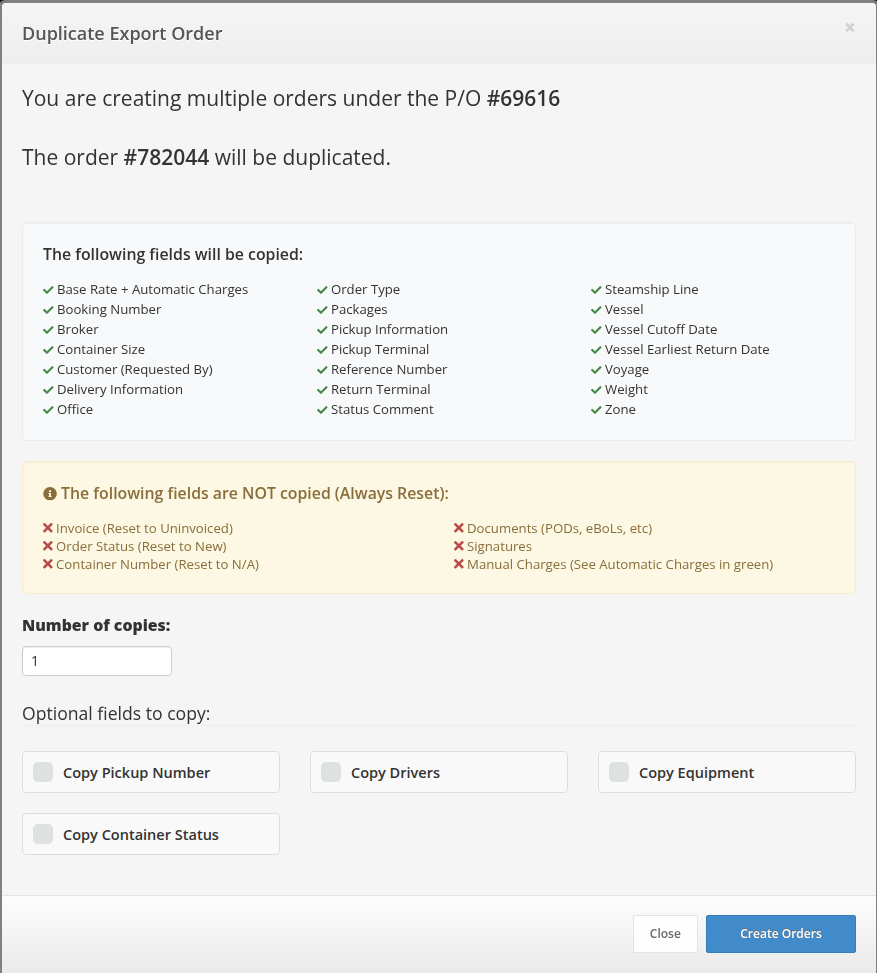
Review the duplication modal that appears:
The modal displays the order type (Import, Export, Transfer, Dry Van, or International Export) in bold
It shows the P/O number and order number that will be duplicated, also in bold
A list of fields that will be copied is displayed in the green section
A warning section shows fields that are NOT copied (always reset)
Set the number of copies you want to create (1-100)
Optionally select additional fields to copy:
Copy Pickup Number (Import orders only)
Copy Drivers (Delivery and Pickup drivers)
Copy Equipment (Equipment type and specific equipment/chassis)
Copy Container Status
Click "Create Orders" to complete the duplication
Finding Duplicated Orders
After duplication, the system automatically redirects you to the Orders list with a search filter applied:
If the original order had a P/O number: The list is filtered to show all orders with that P/O number, making it easy to see all duplicated orders together
If the original order had no P/O number: The list shows orders with P/O number "N/A"
You'll also see a success message indicating how many new orders were created, and if applicable, which P/O number they're associated with.
Example: If you duplicate an order with P/O #65673, after clicking "Create Orders", you'll be redirected to a filtered view showing all orders with P/O #65673, including the newly created duplicates.
What Gets Copied
Always Copied (All Order Types)
Basic Information: Order type, reference number, base rate, booking number, status comments
Terminals: Pickup terminal, return terminal
User & Office: Creator user, office assignment
Container & Equipment: Container size
Booking Information: Vessel, voyage, steamship line
Customer Information: Customer (transport company), user assignment
Address Information (except Transfer orders):
Delivery company, address, contact info, ZIP, instructions, P/O number
Pickup company, address, contact info, ZIP, instructions, P/O number
Base Rate + Automatic Charges: Terminal fees and fuel surcharges are automatically recalculated
Order Type Specific Fields
Export Orders: Packages, weight, vessel earliest return date, vessel cutoff date
Transfer Orders: Delivery date (customer info is excluded as transfers are terminal-to-terminal moves)
Import Orders: Pickup number (only if "Copy Pickup Number" is selected)
Optional Fields (Checkboxes)
Copy Pickup Number (Import only): Copies the pickup number from the original order
Copy Drivers: Copies both delivery and pickup driver assignments
Copy Equipment: Copies equipment type and specific equipment/chassis assignment
Copy Container Status: Copies the container status from the original order
What Does NOT Get Copied
The following fields are always reset in duplicated orders:
✖ Invoice - Reset to Uninvoiced (new orders are never linked to existing invoices)
✖ Order Status - Reset to "New" (all duplicates start fresh)
✖ Container Number - Reset to "N/A" (each order needs its own container)
✖ Documents - PODs, eBoLs, and other documents are not copied
✖ Signatures - Signatures are not copied (must be collected for each order)
✖ Manual Charges - Only automatic charges (terminal fees, fuel surcharges) are recalculated. Any manually added charges must be re-entered
Use Cases
Same Customer, Multiple Containers
When a customer has multiple containers under the same P/O number, duplicate the first order and update the container number for each copy.
Template Orders
Create a template order with common settings (terminals, rates, booking info) and duplicate it for different customers or shipments.
Batch Processing
Use the quantity field to create multiple copies at once (e.g., create 5 orders for 5 containers in one action).
Important Notes
Original Order Unchanged: The original order remains completely unchanged after duplication
Automatic Charges: Terminal fees and fuel surcharges are automatically recalculated based on the terminal and date settings
Order Date: Each duplicated order gets today's date as the order date
P/O Number: The P/O number is copied, which allows you to easily find all related orders using the automatic search filter after duplication
