
Managing cash flow is critical for any trucking business. UTX Freight provides two distinct Aged Receivables (AR) reports to help you track outstanding payments from different perspectives: Business Performance and Accounting Compliance.
1. Performance AR Report (Operational)
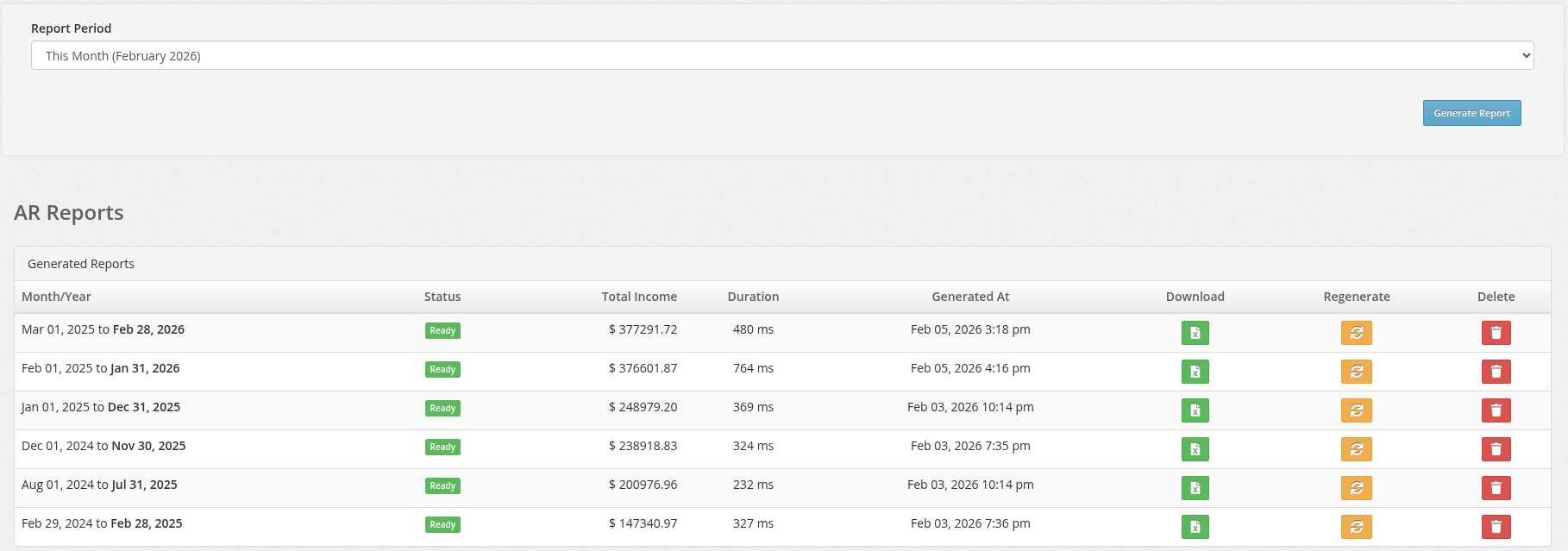
This report is designed for Business Health. It focuses on the last 12 months of activity to give you a complete picture of your recent sales alongside your outstanding collections.
Scope: 12-month period ending on the selected date.
Key Feature: Calculates Total Income (Sales) for the period.
Best For: Owners and Managers wanting to see "How much did we make?" and "Who owes us money from recent work?"
Key Columns
All Income: Total value of invoices generated in the 12-month period (paid and unpaid).
AR Buckets: Outstanding balance categorized by age (30, 60, 90+ days).
2. Standard Aged Receivables (GAAP)
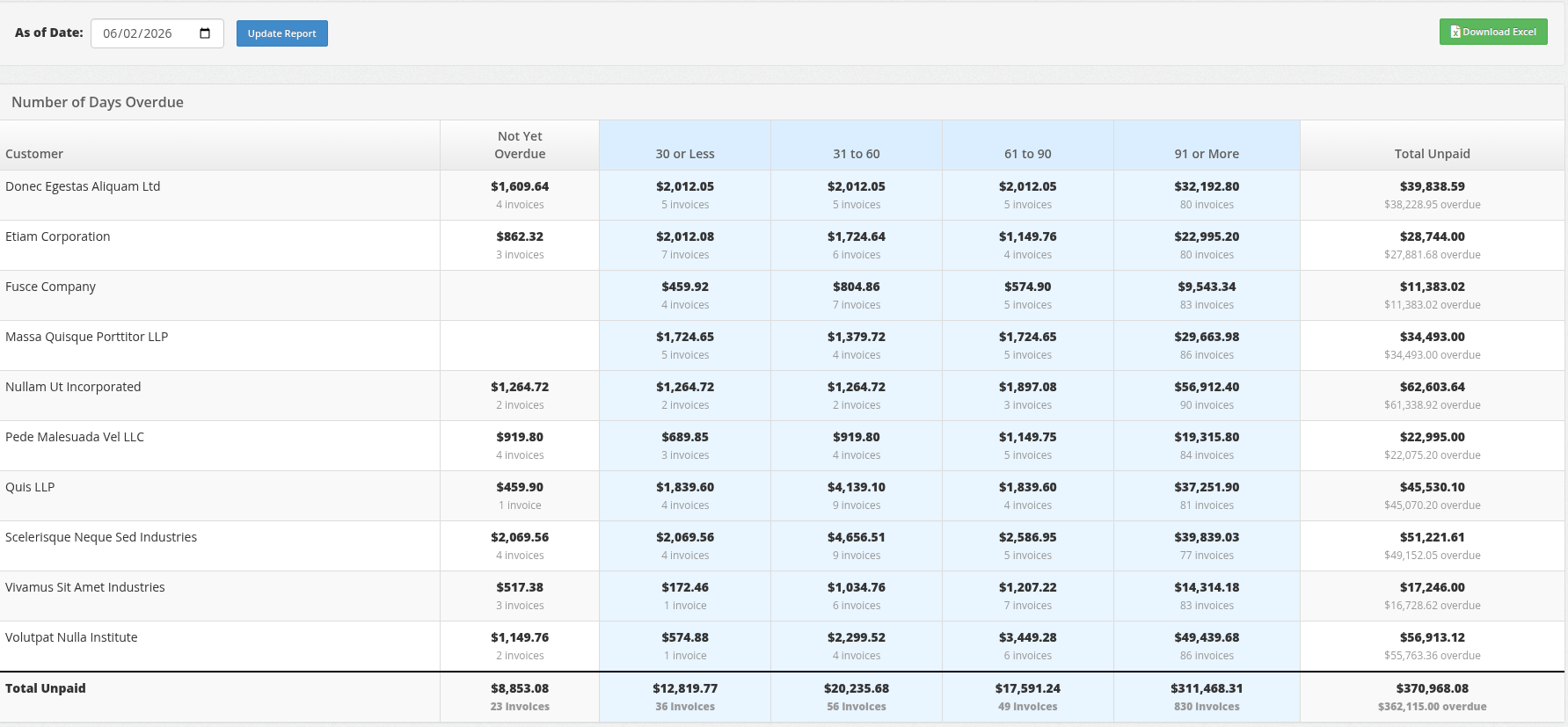
This report is designed for Accounting & Audits. It is a strict, GAAP-compliant snapshot of your Accounts Receivable ledger as of a specific date.
Scope: Historical snapshot (includes all unpaid debts from any time).
Key Feature: Strict aging based on Due Dates.
Best For: Accountants, Bookkeepers, and Year-End Audits.
How it Works
Due Date Priority: Aging is calculated based on the invoice
Due Date. If an invoice has Net 30 terms, it is not considered "Overdue" until day 31.Historical Accuracy: It ignores any invoices or payments created after the selected date, ensuring the numbers match your historical books exactly.
Comparison: Which Report Should I Use?
Feature | Performance Report | Standard AR Report |
|---|---|---|
Primary Goal | Operational Health & Sales | Financial Compliance |
Time Period | Last 12 Months | Snapshot (All Time) |
Includes Income? | Yes (Total Sales) | No (Unpaid Only) |
Aging Based On | Invoice Age | Due Date (Strict) |
Use Case | "How is business going?" | "Close the books for the month." |
How to Use
Generating Reports
Navigate to Reports > Aged Receivables.
Select the Month and Year you want to analyze.
Click Generate Report (for Performance) or Update Report (for Standard AR).
Downloading Data
Both reports allow you to export the data to Excel for further analysis.
Look for the Download Excel button on the report page.
The Excel file will include all columns and totals currently visible on the screen.
Regenerating Reports
If you need to refresh the data (e.g., after fixing an invoice):
Click the Regenerate button (Performance Report) or simply click Update Report again (Standard AR).
Note: Regenerating will overwrite any previously saved file for that specific month/year.
