
Manage monthly fuel surcharge rates that are applied automatically to qualifying orders -- all from one screen.
Overview
The Fuel Surcharge is a percentage-based charge that UTX Freight applies automatically to your Import, Export, and Transfer orders when auto-compute is enabled. You set the rate once per month, and the system takes care of the rest.
Here is how it works at a glance:
Rates are monthly -- each rate covers the full calendar month.
The order's delivery date determines which month's rate applies.
Company overrides let you set a different rate for specific customers.
Exempt customers skip fuel surcharges entirely.
Recalculate updates all open orders in a month with one click.
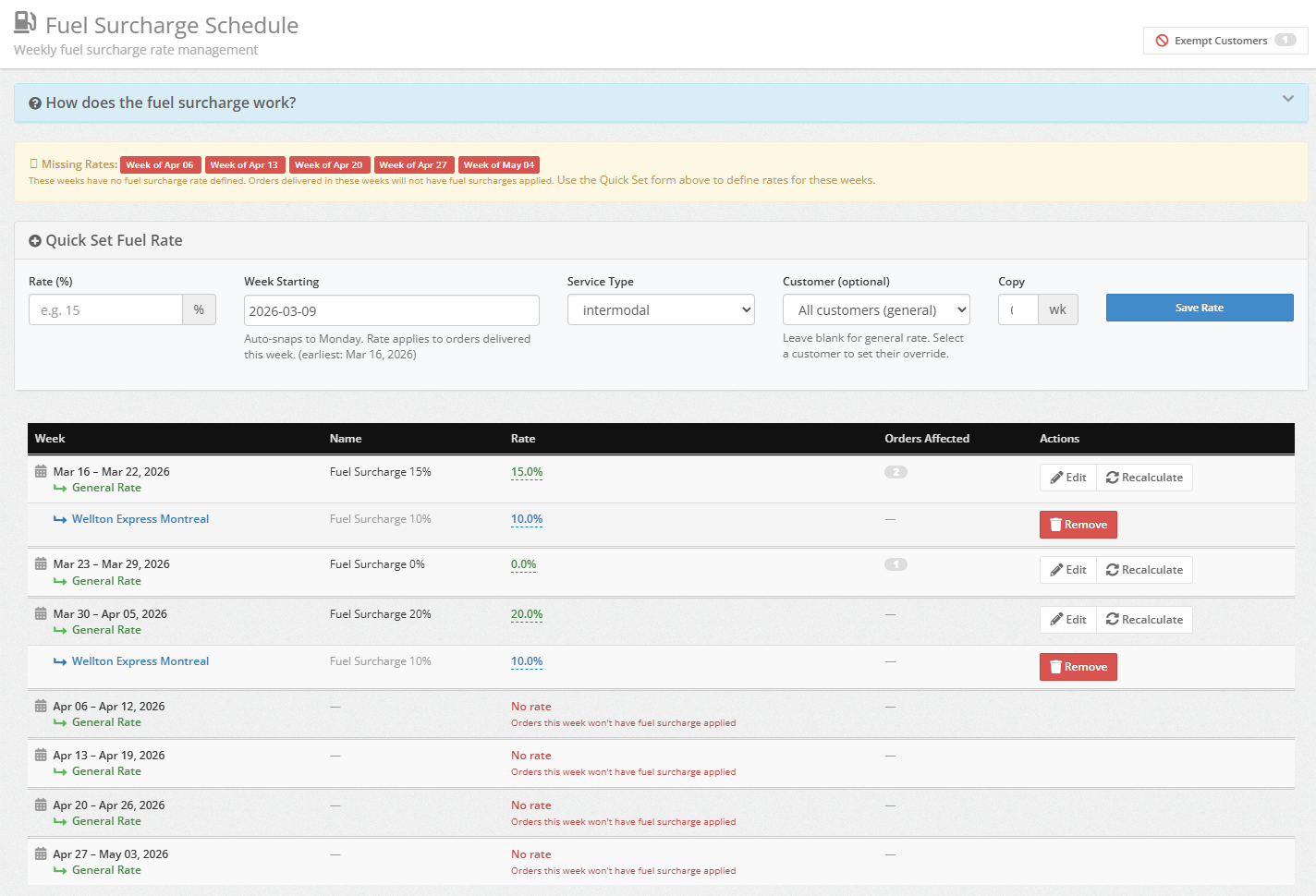
Quick Start
Already familiar with fuel surcharges? Here is the fastest path to setting a rate:
Go to Charges Fuel Schedule from the main menu.
Enter a Rate (%), pick the Month, and choose a Service Type.
Click Save Rate.
That's it -- the rate is now live for that month. Every qualifying open order delivered in that month will pick up this rate automatically when charges are computed.
Changed a rate after orders were already created? No problem. Just click the Recalculate button on that month's row to update all open orders instantly.
Access & Permissions
The Fuel Schedule page is available to users with one of these roles:
Role | Access Level |
|---|---|
Manager | Full access |
Dispatch (with | Full access |
Accountant | Full access |
How to get there:
From the left menu, click Charges
Select Fuel Schedule
If you don't see Fuel Schedule under the Charges menu, your user role may not have the required permissions. Ask your administrator to grant the manage_rates permission to your dispatch account.
Setting a Fuel Rate
Use the Quick Set form at the top of the Fuel Schedule page to create or update a rate for any month.

Quick Set Form Fields
Field | What It Does |
|---|---|
Rate (%) | The fuel surcharge percentage. Enter |
Month | The month this rate applies to. |
Service Type | Which service type this rate covers (e.g., Intermodal). |
Customer | Leave this blank for a general rate that applies to everyone. Or select a specific customer to create a company override. |
Copy (mo) | Number of extra months to copy the same rate forward (0 to 12). Great for setting rates several months in advance. |
Step-by-step: Create a new monthly rate
Navigate to Charges Fuel Schedule.
Enter the Rate (%) -- for example,
15for a 15% surcharge.Pick the Month from the dropdown.
Choose the Service Type from the dropdown.
Leave Customer blank if this is a general rate for all customers.
Optionally enter a number in Copy (mo) to repeat this rate for multiple future months.
Click Save Rate.
If a rate already exists for that month and customer combination, it is updated with the new value.
Use the Copy (mo) field to save time! If your fuel rate stays the same for the next 4 months, enter 4 and all four months are set in one shot.
How the Fuel Amount Is Calculated
The formula is straightforward:
Base Rate x Fuel Rate % = Fuel Surcharge Amount
Example: An order has a base rate of $1,000 and the fuel rate for that month is 15%.
$1,000 x 15% = $150.00 fuel surcharge
The amount is always rounded to the nearest cent.
The fuel surcharge is calculated based on the order's delivery date, not the date the order was created. If you move an order's delivery date to a different month, the fuel rate for the new month applies.
Understanding the Schedule Table
The schedule table is the heart of the Fuel Schedule page. It shows every month's fuel rate at a glance, organized chronologically with clear visual cues so you can scan it quickly.
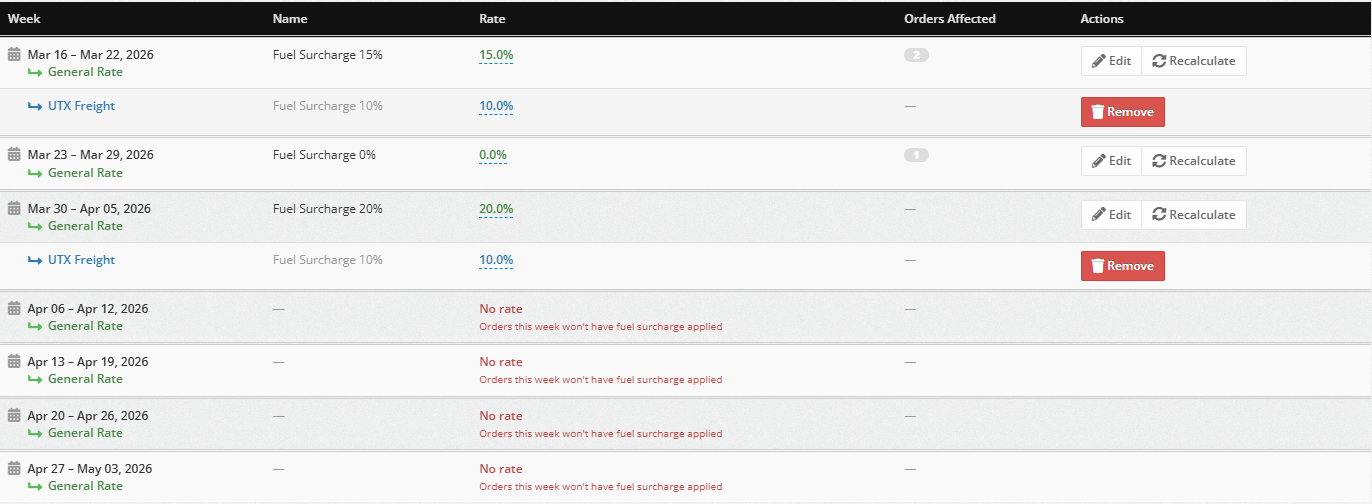
Color Guide -- What the Colors Mean
The schedule table uses a color system to help you instantly understand what you are looking at. This is one of the most important things to learn:
Green -- General Rate
The green row labeled "General Rate" is the default fuel rate for all customers that month. If a customer does not have a custom override, this is the rate that applies to their orders.
Blue -- Custom Company Rate
A blue row with a company name means that specific customer has a custom rate override for that month. This custom rate takes priority over the green general rate.
Red -- Attention Needed
Red text anywhere in the table means something needs your attention:
"charges pending removal" -- An exempt customer still has fuel charges on open orders. You need to recalculate.
"No rate" -- No rate is defined for that month. Orders delivered that month will not have fuel surcharge applied.

Other Visual Indicators
"Current" label -- A blue badge marks the current month so you always know where you are.
Faded rows -- Past months appear faded. Their rates are locked and cannot be edited.
Double borders -- A thick border separates each month so you can scan rows quickly without losing your place.
Orders Affected Column
Each row shows the count of open orders that use that month's rate. This tells you how many orders will be impacted if you change the rate or click Recalculate.
If any of those orders belong to exempt customers who still have fuel charges, the count appears in red as a reminder to recalculate.
Custom Company Rates
Need to charge a different fuel rate for a specific customer? You can create a custom company rate that overrides the general rate for that month.
Step-by-step: Set a custom rate for a customer
Go to Charges Fuel Schedule.
In the Quick Set form, select the customer from the Customer dropdown.
Enter the custom Rate (%).
Pick the Month.
Choose the Service Type.
Click Save Rate.

The override appears indented below the general rate row for that month, with the company name displayed in blue. Whenever this customer's orders are created or updated, the system uses their custom rate instead of the general rate.
Removing a Custom Rate
To remove a custom company rate, click the red Remove button on the override row. The customer will then fall back to the green general rate for that month.
After removing a custom rate, remember to click Recalculate on that month so open orders for that customer are updated to use the general rate.
Exempting a Customer from Fuel Surcharges
Some customers may have contractual agreements that exclude fuel surcharges entirely. You can mark these customers as exempt.
Step-by-step: Exempt a customer
From the left menu, select Customers.
Find the customer by name.
Click the Edit button on that customer.
Scroll down to the Fuel Surcharge section.
Check the box labeled Exempt from Fuel Surcharge.
Click Save.

After saving, if the customer has open orders that already carry fuel charges, you will see a yellow warning banner on the Customers page.

Exempting a customer does not automatically remove fuel charges from their existing open orders. You must go to the Fuel Schedule and click Recalculate on the affected month(s) to remove those charges. Until you do, those stale charges remain on the orders.
Viewing All Exempt Customers
Want to see every customer who is currently exempt? Click the Exempt Customers button in the top-right corner of the Fuel Schedule page.
The badge on the button shows the total count of exempt customers at a glance.
Stale Charges on Exempt Customers
When a customer is exempted but their open orders still carry fuel charges, those charges are considered stale. This is the most common issue dispatchers run into, so here is exactly what to look for.
The schedule table flags stale charges with a red indicator on the affected month's row:
(3 exempt -- charges pending removal)

This tells you that 3 orders for exempt customers in that month still have fuel charges that need to be removed.
How to fix it: Click the Recalculate button on that month's row. The stale charges will be cleared to $0 for all exempt customers.
Check the Fuel Schedule page regularly -- especially after exempting customers. Stale charges are easy to miss if you do not look for the red indicators.
Recalculating Fuel Charges
The Recalculate button is your tool for updating all open orders in a given month with the current fuel rate. It appears on current and future months whenever there are open orders or exempt charges to process.
Step-by-step: Recalculate a month
On the Fuel Schedule page, find the month you want to update.
Click the Recalculate button on that month's row.
A preview modal opens showing every affected order, its current fuel amount, and the new amount after recalculation.
If any exempt customers have stale charges, they appear in a separate Exempt Orders section at the bottom of the modal. These orders will have their fuel charges set to $0.
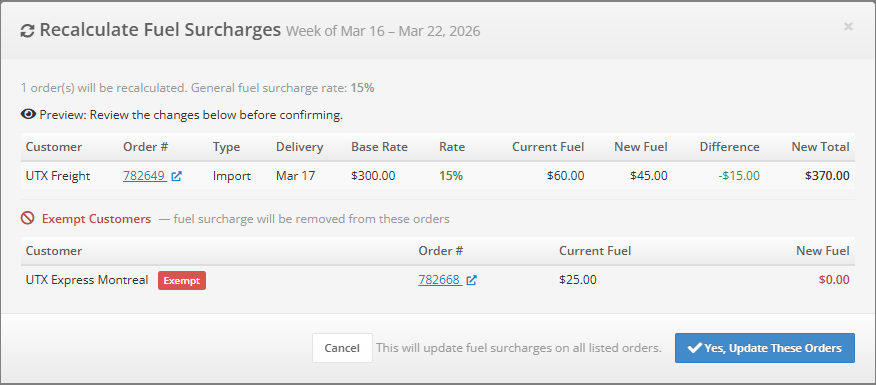
Review everything carefully, then click Confirm to apply all changes.
All open orders for that month are updated in one step. Completed and invoiced orders are never modified -- they are safe.
You can click on any order number in the Recalculate modal to open that order in a new tab. This is helpful if you want to review an order before confirming the recalculation.
Past months do not show a Recalculate button. If you need to fix charges on a past month, you must adjust those orders individually from the Orders page.
Missing Rates Warning
If any upcoming months do not have a fuel rate defined, a red warning banner appears at the top of the Fuel Schedule page listing the affected months.

Orders delivered in months without a rate will not have any fuel surcharge applied. Use the Quick Set form to define rates for those months as soon as possible.
Set your fuel rates at least 2-3 months in advance to avoid missing rates on new orders. Use the Copy (mo) field in the Quick Set form to set multiple months at once.
Legacy Weekly Rates
Before the monthly fuel schedule was introduced, fuel rates were set on a weekly basis (Monday through Sunday). If your account has been around for a while, you may still see these older weekly rates.
Here is what you need to know:
Orders delivered before the monthly cutoff date still use the legacy weekly rates.
The cutoff date is displayed in a blue info banner at the top of the Fuel Schedule page.
Legacy weekly rates appear in a separate table at the bottom of the page.
You can still edit legacy weekly rates if you need to make adjustments.
All new rates should be set using the monthly system. The legacy weekly table is only for historical orders that predate the monthly cutoff.
FAQ / Troubleshooting
Customer was exempted but still has fuel charges
Exempting a customer does not automatically remove existing fuel charges from their open orders. Go to Charges > Fuel Schedule, find the affected month, and click Recalculate to remove the stale charges. The preview modal will show those orders in the Exempt Orders section with their fuel set to $0.
No Recalculate button for a past month
Past months are locked and cannot be recalculated. The Recalculate button only appears on the current month and future months. To fix fuel charges on past-month orders, you need to edit those orders individually from the Orders page.
Rate was changed but orders still show the old amount
Changing a fuel rate does not automatically update existing orders. Click Recalculate for that month to apply the new rate to all open orders. The preview modal will show you the old and new amounts before you confirm.
Customer has a custom rate but orders use the general rate
Double-check that the custom rate is set for the correct month and service type. The order's delivery date determines which month's rate applies, and the service type must match exactly. If the rate was added after the orders were created, click Recalculate to apply it.
Tips for managing fuel surcharges effectively
Set rates early. Use the Copy (mo) field to set rates 4-8 months in advance.
Check for red indicators. Red text on the schedule table always means something needs your attention.
Recalculate after changes. Any time you change a rate, exempt a customer, or remove a custom override, click Recalculate on the affected months.
Review the preview. Always check the Recalculate preview modal before confirming -- it shows you exactly what will change.
