
Quick steps
This section explains how to get up and running with UTX Freight highlighting the basic needs to create your first Order.
Create your first customer
All the orders in UTX Freight are placed on behalf of a contact Person from a Customers list, therefore the first step is to create the Customer company and invite a contact.
From the left menu, select Customers
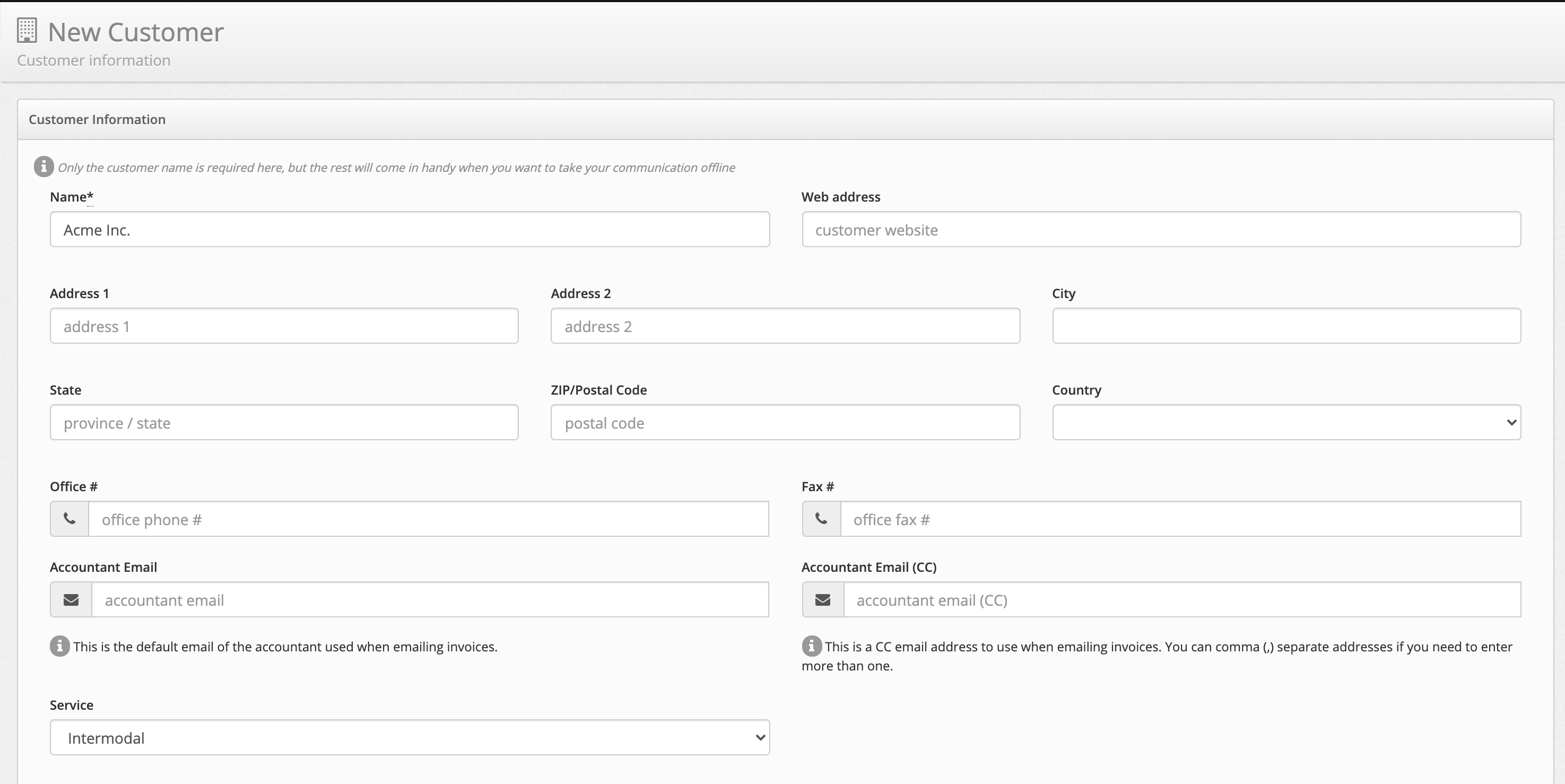
Click on the Add a new customer button on the top right
Start by entering the company name which is the only required field
Click on Save Changes
Add a contact person
Once you have your first Customer created, you need to invite a contact Person for this Customer. Orders will be associated with those contacts and they will be the ones receiving notifications.
From the left menu, select Customers
Using the top filter, find your Customer by typing the company name
Once the results show up, click on Add Person
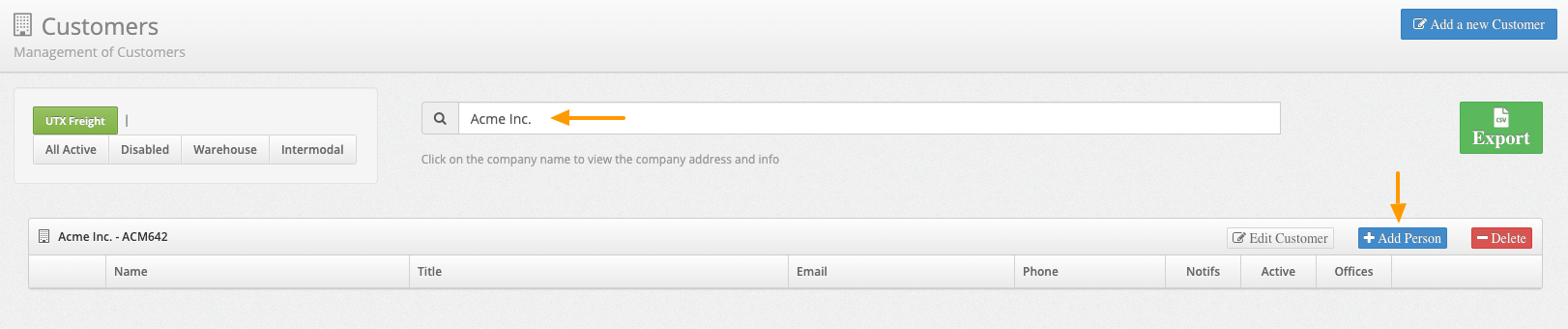
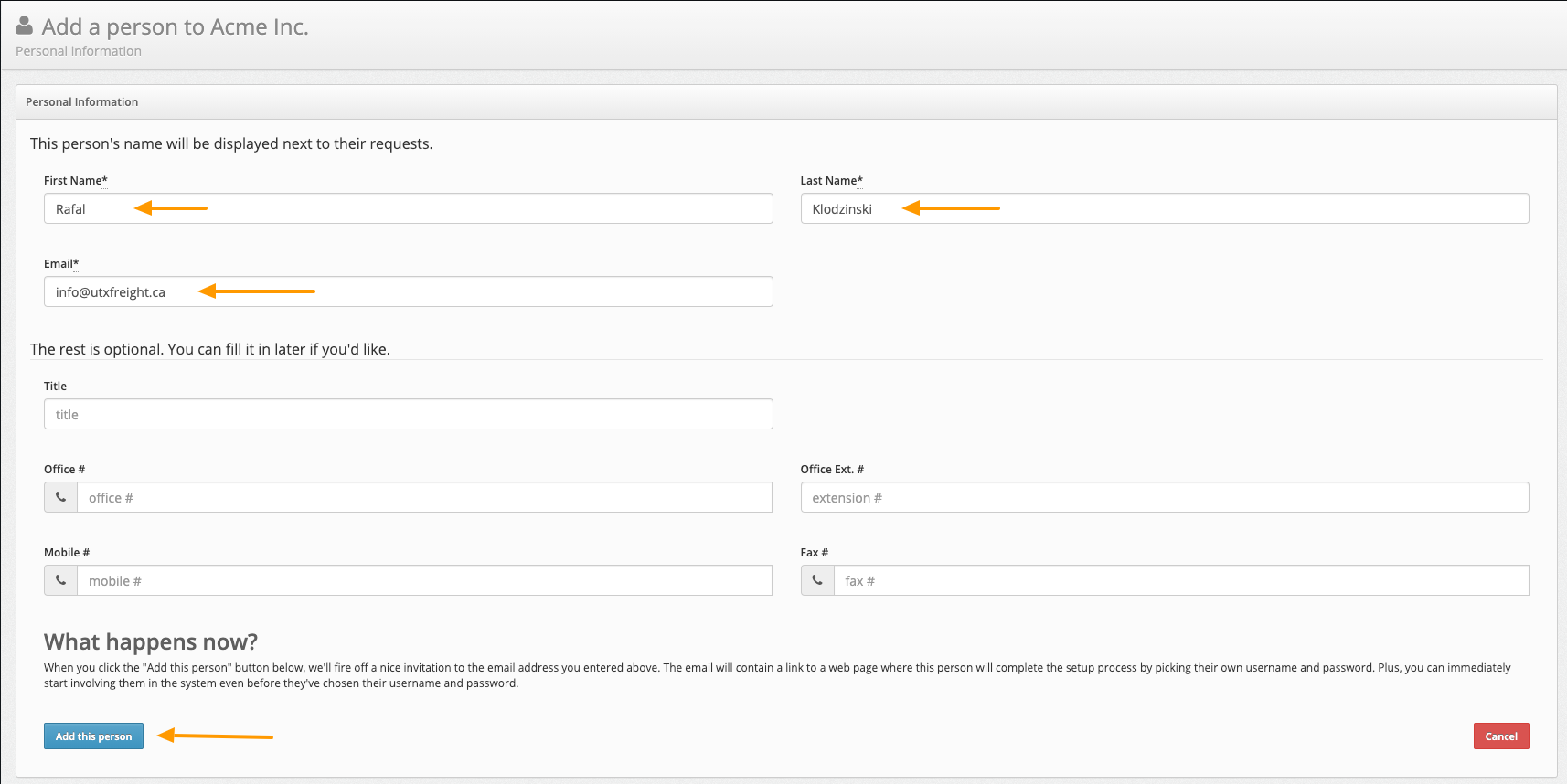
When you add a new Person to the system, they will automatically receive an invitation email and they will be able to add new Order. You can skip this step by entering a dummy email address, using for example customer_name+1@utxfreight.ca. You can always change this later.
Fill up the basic user information such as First name, Last name and Email and you are ready to go.
Create your first Order
Once you enter your Customer and a contact Person, you can move ahead and create your first Order.
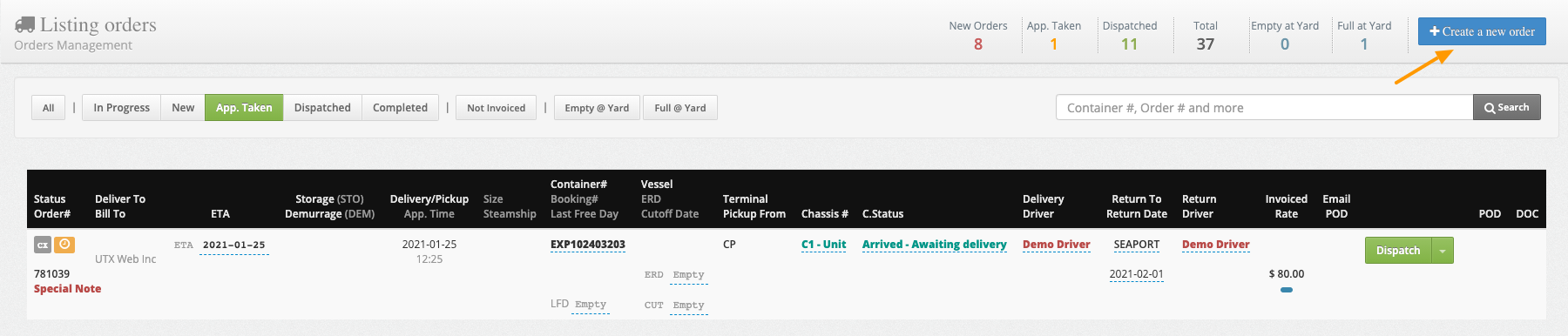
From the left menu, select Orders
Click on Create a new Order
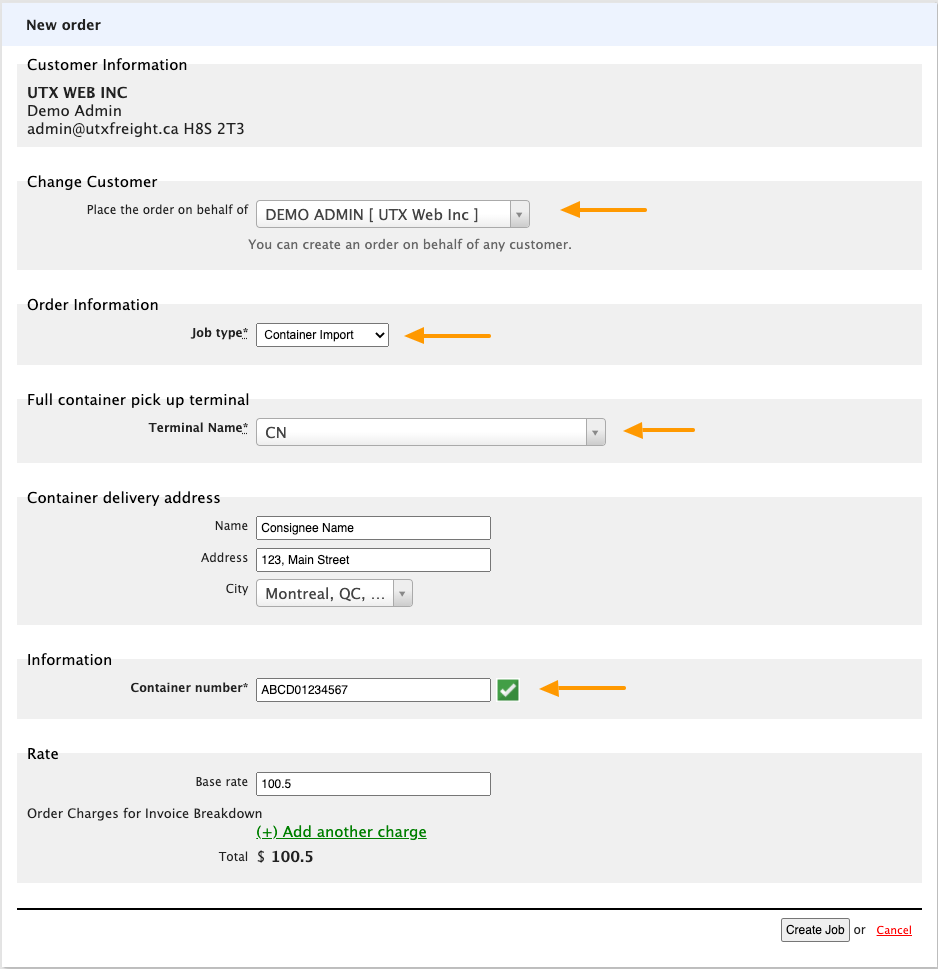
The create new order has many options, let's create an Container Import to start, the following fields are required and must be supplied:
Customer
Order Type
Pickup Terminal
Delivery Address
Container Number
Next Steps
Once the information is entered and the order submitted you will be ready to proceed with the next steps.
Scheduling an appointment
Tracing the shipment
Assigning Drivers
Dispatching the order
Delivering and accepting a signature
Completing the order
Invoicing
Getting paid